Introduction to TMUX
tmux is a terminal multiplexer that we use especially when managing long-running or multiple terminal sessions. This tool allows users to manage multiple terminal sessions within a single interface.
It’s particularly useful when you need to focus on multiple tasks simultaneously, greatly streamlining your workflow.
An important feature is that tmux sessions are preserved even if the connection is lost. This means that when working remotely with a server, if your connection drops, your tmux session continues running in the background, and when you reconnect, you can resume exactly where you left off. This is extremely useful, especially when dealing with unstable internet connections or running long-duration commands.
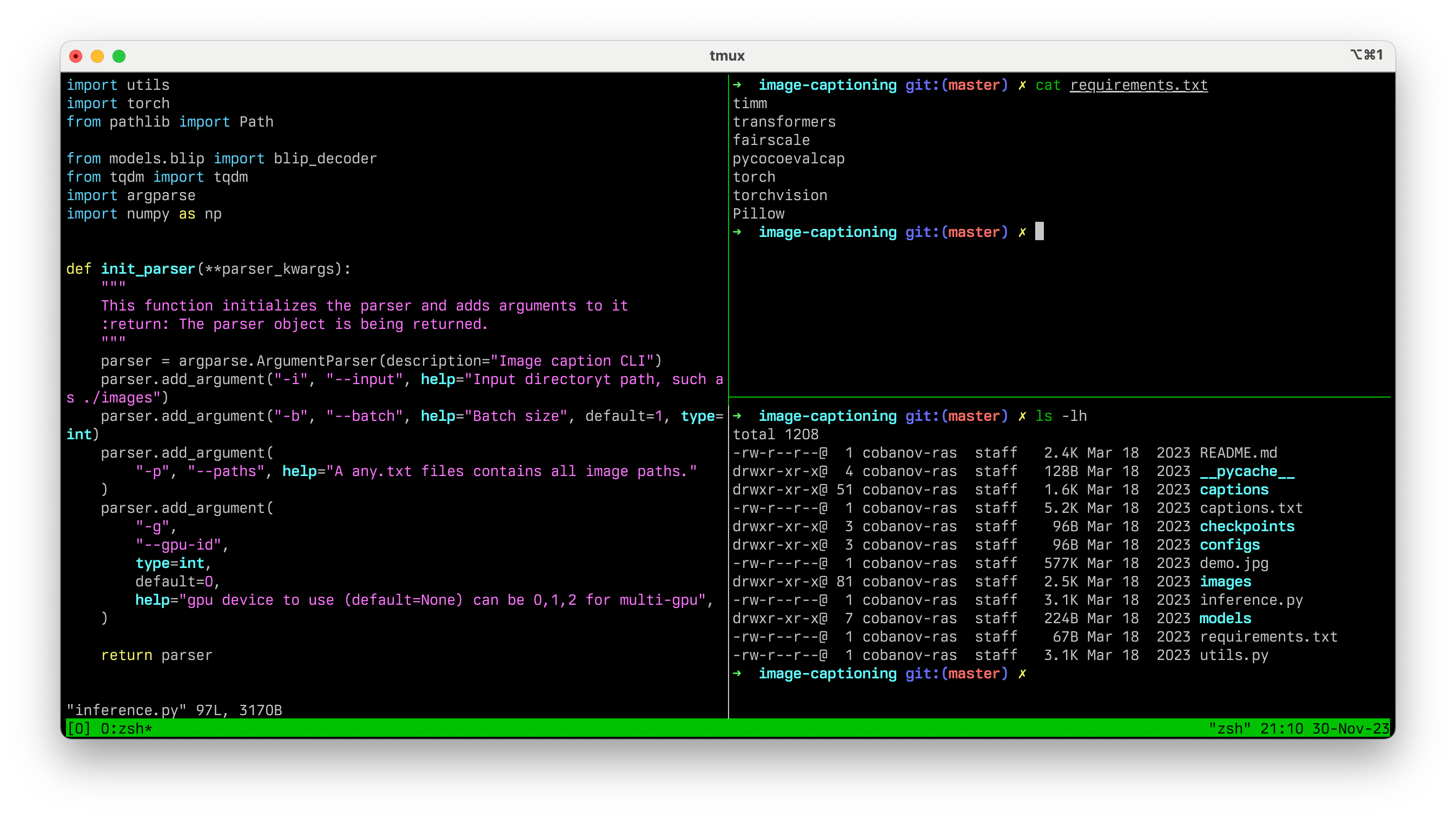
Why would I need tmux?
tmux works like a powerful, flexible, and resilient control center for your command-line tasks, especially when managing remote sessions or switching between multiple tasks in a terminal environment.
- Multiple Windows: tmux allows you to open multiple windows within a single terminal window. This is especially useful when working on a remote server where you can’t open multiple terminal tabs like you would on your local machine.
- Sessions and Detaching: You can detach from a tmux session and leave it running in the background. This means you can start a long-running process within a tmux session, detach from it, and then reattach later, even from a different computer. This is invaluable for maintaining persistent sessions on remote servers for long-running tasks.
- Persistent Sessions: If your connection to a server is lost (like losing an SSH connection), tmux keeps your session active. You can reconnect and continue exactly where you left off without losing anything.
- Split Panes: tmux divides your terminal window into multiple panes horizontally and vertically. This is great for viewing the output of several commands simultaneously, monitoring, editing, or running multiple command-line applications side by side.
Installing tmux
Source: https://github.com/tmux/tmux/wiki/Installing
╔════════════════════════╦═════════════════════╗
║        Platform        ║   Install Command   ║
╠════════════════════════╬═════════════════════╣
║ Arch Linux             ║ pacman -S tmux      ║
║ Debian or Ubuntu       ║ apt install tmux    ║
║ Fedora                 ║ dnf install tmux    ║
║ RHEL or CentOS         ║ yum install tmux    ║
║ macOS (using Homebrew) ║ brew install tmux   ║
║ macOS (using MacPorts) ║ port install tmux   ║
║ openSUSE               ║ zypper install tmux ║
╚════════════════════════╩═════════════════════╝
Getting started with tmux
To start using tmux, type tmux in your terminal. This command starts a tmux server and creates a default session (number 0).
tmux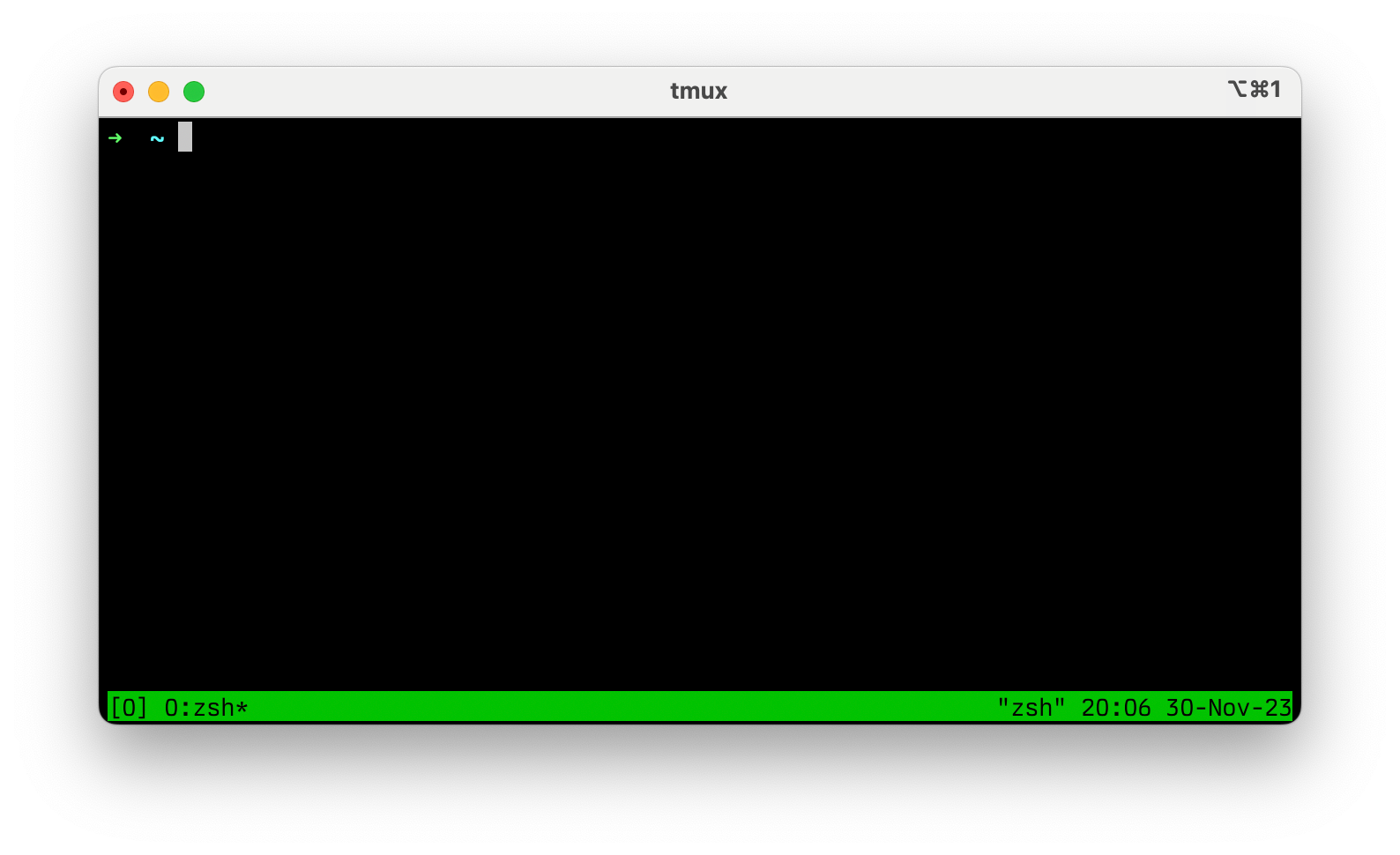
To detach from a tmux session, press Ctrl+B followed by D (detach). tmux uses a series of key bindings (keyboard shortcuts) that are triggered by pressing a “prefix” combination. By default, the prefix is Ctrl+B. Then, press D (detach) to detach from the current session.
~ tmux ls # 0: 1 windows (created Thu Nov 30 20:16:45 2023)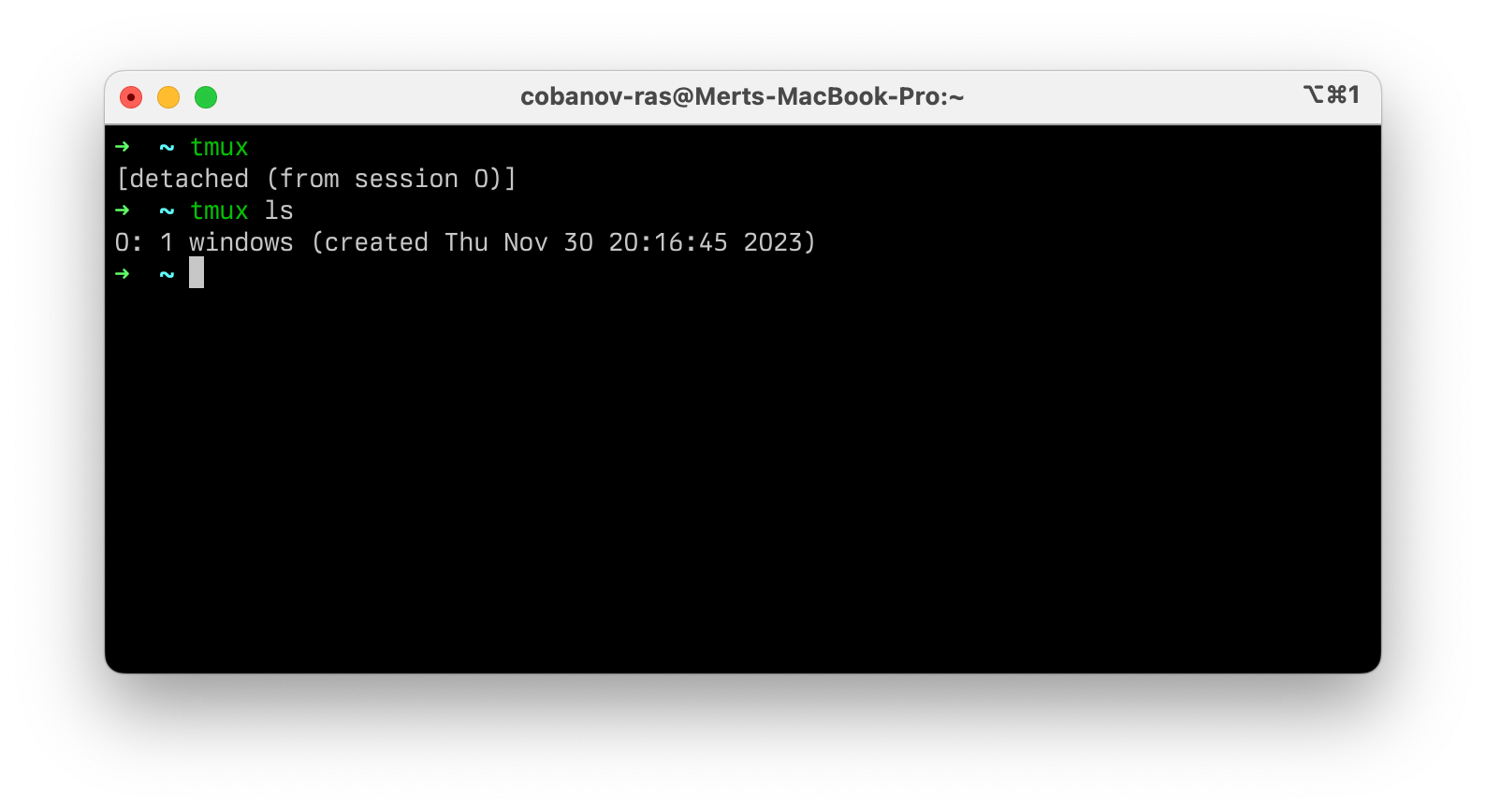
You can rename an already opened session using the following command:
# tmux rename -t <target_session> <new_name>
~ tmux rename -t 0 cobanov
At this point, you can disconnect your SSH connection and the command will continue running. You can reconnect to the existing tmux session whenever you want and continue where you left off:
# tmux a -t <session_name>
~ tmux attach -t cobanov
Voilà! Everything continues exactly where it was.
Managing Screens
Just as you have windows in a desktop environment, you have panes in tmux. Like windows, these panes allow you to interact with multiple applications and can similarly be opened, closed, resized, and moved.
Unlike a standard desktop environment, these panes are tiled across the entire terminal and are mostly managed through tmux shortcuts (although mouse functionality can be added). To create a new pane, you split the screen either horizontally or vertically.
Vertical Screen Split
Ctrl+B %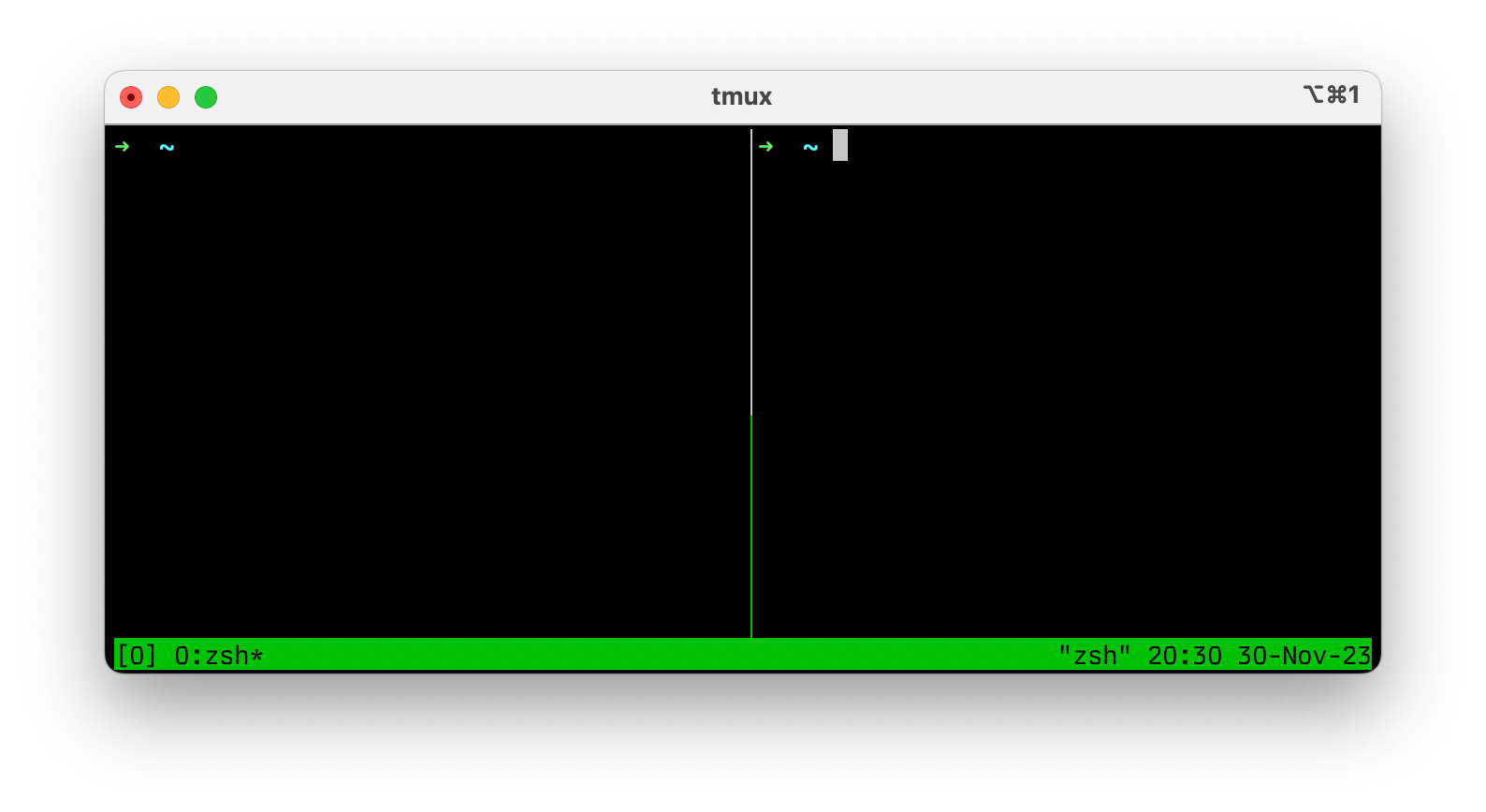
Horizontal Screen Split
Ctrl+B "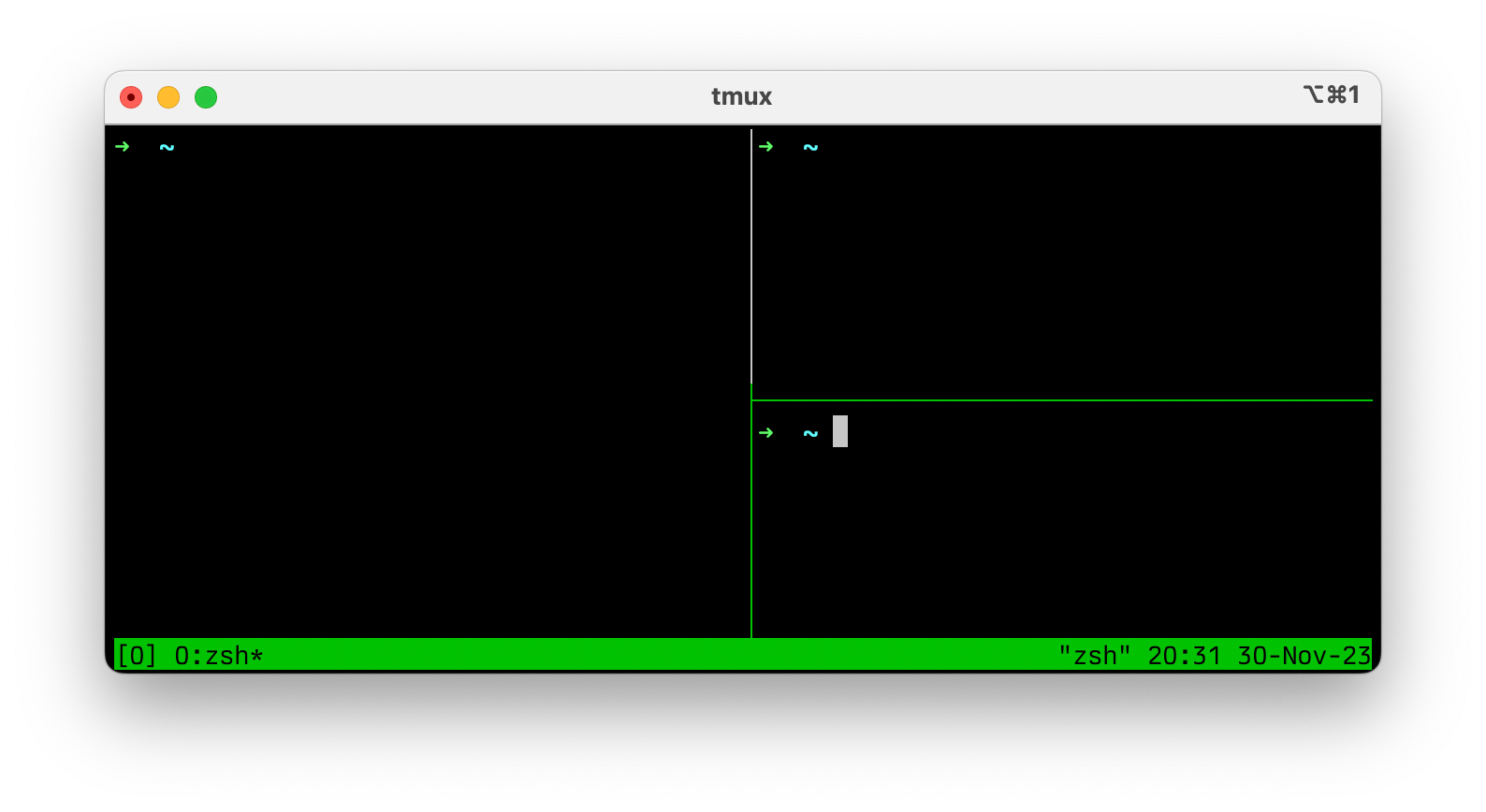
Switching Between Screens
Ctrl+B [arrow key]To see all the shortcut keys in tmux, simply use the bind-key ? command, which in my case would be Ctrl+B ?.